How to add items on QBCore: items.lua, images, CreateUseableItem
Add a custom item to QBCore: the qb-core/shared/items.lua entry and its fields, the image in qb-inventory, giving it, and making it usable with CreateUseableItem.
You added an item to your QBCore server, and it either does not exist in game, has no icon, or does nothing when used. Here is the full path: the item entry, the image, giving it, and making it usable.
1. The item entry
Open qb-core/shared/items.lua. Items are entries in the QBShared.Items table, keyed by name. Add yours, with a comma after the previous entry:
['burger'] = {
    ['name'] = 'burger',
    ['label'] = 'Burger',
    ['weight'] = 220,
    ['type'] = 'item',
    ['image'] = 'burger.png',
    ['unique'] = false,
    ['useable'] = true,
    ['shouldClose'] = true,
    ['description'] = 'A warm burger.',
},
What each field does:
| Field | Meaning |
|---|---|
name |
Item name; must match the key, lowercase, no spaces |
label |
Name shown to players |
weight |
Weight of one item |
type |
item for normal items, weapon for weapons |
image |
File name of the icon, extension included |
unique |
true if every copy is its own slot (it can carry data) |
useable |
true if players can use it |
shouldClose |
true closes the inventory on use |
description |
Text under the label |
Copy a neighbouring item in the same file when unsure: the file shows exactly the fields your version expects.
Warning: one missing comma or brace in
items.luastops qb-core from loading, and with it every script that depends on it. If everything breaks after the edit, look at your last entry first.
2. The image
Put a .png with the name from the image field in the inventory's images folder:
qb-inventory/html/images/burger.pngThe folder is the same whether the item is food, a tool or a document. With a different inventory resource, use its own images folder instead. A missing file shows an empty icon, and the name must match the image field exactly, extension included.
3. Restart and test
items.lua is read by qb-core when it starts. In the server console:
restart qb-coreRestarting qb-core while players are online can disconnect or break scripts that depend on it, so on a live server do it at a quiet time, or restart the whole server. Then give yourself the item with the admin command:
/giveitem <player id> burger 1From a script, on the server side:
local QBCore = exports['qb-core']:GetCoreObject()

local Player = QBCore.Functions.GetPlayer(source)
if Player then
    Player.Functions.AddItem('burger', 1)
end
If QBCore is nil here, read attempt to index a nil value (global 'QBCore').
4. Make it usable
Setting useable = true only allows the use. You also have to say what happens, on the server:
local QBCore = exports['qb-core']:GetCoreObject()

QBCore.Functions.CreateUseableItem('burger', function(source, item)
    local Player = QBCore.Functions.GetPlayer(source)
    if not Player then return end

    if Player.Functions.RemoveItem('burger', 1) then
        TriggerClientEvent('QBCore:Notify', source, 'You ate the burger', 'success')
        -- your effect here: heal, hunger, an animation event
    end
end)
The callback gets the player id and the item data. Remove the item yourself if the use should consume it, as above.
If a restart of your script makes the item stop working, remember that registration happens when the script starts. Restart the script that contains CreateUseableItem, not only qb-inventory.
Items that carry data
For items that carry information, such as a note with text or a ticket with a code, set unique to true. Each copy can then hold its own data in the info table, which you give when adding the item:
Player.Functions.AddItem('ticket', 1, false, { code = 'A12' })The common problems
- Item name mismatch. The key, the
namefield, the image name and the name you pass toAddItemmust be the same word. - Item added to a different file. Some scripts ask you to add their items to a copy of the list inside the script. Check its install notes, and add items in
qb-core/shared/items.lua, unless told otherwise. - Old inventory. Older qb-inventory versions keep a separate copy of some item data in their own folder. If an item shows a wrong label, check that nothing else defines it.
On QBox
QBox uses ox_inventory instead of qb-inventory, and its items live in ox_inventory/data/items.lua. The format is different, and so are the usable-item calls. Follow adding items to ox_inventory.
Add items without editing files
Changing items.lua and restarting the core for every new item is the slow part. Item Creator lets you create items in game instead.
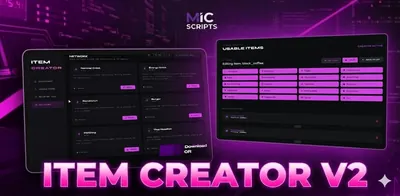 Item Creator V2Create usable items with animations, props, effects and more — without writing code.from €18.15View script →
Checklist
| Symptom | Fix |
|---|---|
| Item not found | Add it to qb-core/shared/items.lua and restart qb-core |
| Everything breaks after the edit | Syntax error in items.lua; check commas and braces |
| Empty icon | Add burger.png to qb-inventory/html/images, matching the image field |
| Item does nothing | Set useable = true and register QBCore.Functions.CreateUseableItem |
| Name does not match | Use one identical name in key, name, image and code |
| QBox server | Use ox_inventory's data/items.lua instead |
Quick answers
Where are items defined in QBCore?
In qb-core/shared/items.lua. Each item is a table inside QBShared.Items, keyed by its name, and the icon is a .png of the same name in the inventory's images folder.
Does QBox use qb-core/shared/items.lua?
No. QBox uses ox_inventory, where items live in ox_inventory/data/items.lua. See the ox_inventory guide linked in this article.
Why is my item not usable?
Either useable is false in the item entry, or no code registered it. Set useable = true and register it with QBCore.Functions.CreateUseableItem on the server.