How to add items to ox_inventory: items.lua, images and usable items
Add a custom item to ox_inventory: the data/items.lua entry, the image in web/images, giving it with AddItem, and making it usable with a client export.
You want a new item in your server: a burger, a lockpick, a phone battery. With ox_inventory, which ESX and QBox servers use, an item is one Lua table in one file. This article covers the entry, the image, giving the item to a player, and making it usable.
1. The item entry
Open ox_inventory/data/items.lua. Inside the returned table, add an entry. The key is the item name: lowercase, no spaces.
['burger'] = {
    label = 'Burger',
    weight = 220,
    stack = true,
    close = true,
    description = 'A warm burger.',
},
What the fields do:
| Field | Meaning |
|---|---|
label |
Name shown to players |
weight |
Weight of one item, in grams |
stack |
true if several can share a slot, false if each takes its own slot |
close |
true closes the inventory when the item is used |
description |
Text under the label |
Check the other items in the same file for the exact fields your version of ox_inventory supports, and copy their style. The file is the best reference for your install.
Warning: a Lua syntax error in
items.luastops ox_inventory from starting. Check for a missing comma between entries, and a missing closing brace.
2. The image
ox_inventory looks for a .png named after the item:
ox_inventory/web/images/burger.pngThe name must match the item name exactly, and a missing image only shows an empty icon. A square image around 100 by 100 pixels or larger, with a transparent background, looks best.
3. Reload and give it to yourself
Restart the inventory so it reads the file:
restart ox_inventoryThen give yourself the item. Admins with the right permission can use the /additem command from in game or the console:
additem <player id> burger 1If the command is refused, you are missing admin permissions, see ACE permissions for admins.
4. Give the item from a script
On the server side, use the export:
local success = exports.ox_inventory:AddItem(source, 'burger', 1)
if not success then
    print('Could not add the item: inventory full or unknown item')
end
AddItem takes the player id, the item name, the count, and optional metadata. Removing and checking work the same way:
exports.ox_inventory:RemoveItem(source, 'burger', 1)

local count = exports.ox_inventory:Search(source, 'count', 'burger')
If the player cannot carry the item because of weight or slots, AddItem returns false. You can check first:
if exports.ox_inventory:CanCarryItem(source, 'burger', 1) then
    exports.ox_inventory:AddItem(source, 'burger', 1)
end5. Make the item usable
An item can run code when a player uses it. ox_inventory supports this in the item definition itself, with a client block that points at an export of one of your resources:
['burger'] = {
    label = 'Burger',
    weight = 220,
    stack = true,
    close = true,
    description = 'A warm burger.',
    client = {
        export = 'my_script.burger',
    },
},
The value is resourceName.exportName. In my_script, register the export on the client:
-- my_script/client.lua
exports('burger', function(data, slot)
    exports.ox_inventory:useItem(data, function(used)
        if used then
            print('Burger eaten')
        end
    end)
end)
useItem removes one item and runs your function only if the use went through. It is the standard way to let ox_inventory handle the animation, progress time and consumption, when the item has them set.
The same block can carry built-in effects instead of an export. Look at the food and drink items already in items.lua for the available options, for example status, anim and prop, and reuse that shape for your own food item.
ESX and QBCore style usable items
Scripts written for the framework register usable items with ESX.RegisterUsableItem('burger', ...) or QBCore.Functions.CreateUseableItem('burger', ...). ox_inventory works with those calls when it runs with the framework, so those scripts do not need changing, as long as the item exists in items.lua.
Creating items without editing files
If you create items often, editing files and restarting gets slow. Item Creator lets you create items in game, so you do not touch items.lua for every one.
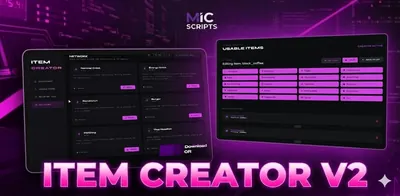 Item Creator V2Create usable items with animations, props, effects and more — without writing code.from €18.15View script →
On QBCore and QBox
ox_inventory is the inventory of QBox, so everything above applies as it is. On QBCore, the default inventory is qb-inventory instead, with items in qb-core/shared/items.lua, covered in adding items on QBCore.
Checklist
| Symptom | Fix |
|---|---|
| Item does not exist | Add it to data/items.lua, then restart ox_inventory |
| ox_inventory will not start | Syntax error in items.lua; check commas and braces |
| Empty icon | Put <item name>.png in web/images |
AddItem returns false |
Unknown item name, inventory full, or too heavy |
| Item does nothing when used | Add a client block with an export, and register that export |
| Usable-item script ignored | The item name in the script must match the key in items.lua |
Quick answers
Where do I add items in ox_inventory?
In ox_inventory/data/items.lua. Each item is a table keyed by its name, and the same name is the image file in web/images.
Why does my new item show no icon?
The image is missing or named differently. Put <item name>.png in ox_inventory/web/images, with the exact item name and a lowercase extension.
Do I have to restart the server after adding an item?
No. Restart ox_inventory and the new item is loaded. If a script needs it, restart that script too.